Batch Resize Product Images for Shopify — What Dimensions Actually Work?
Shopify recommends 2048×2048 square images for products, but resizing a whole catalogue one by one is slow. Here's the exact size that works, why it matters for page speed, and how to batch resize locally in your browser.
- shopify
- image resizing
- product photos
- ecommerce
- how-to
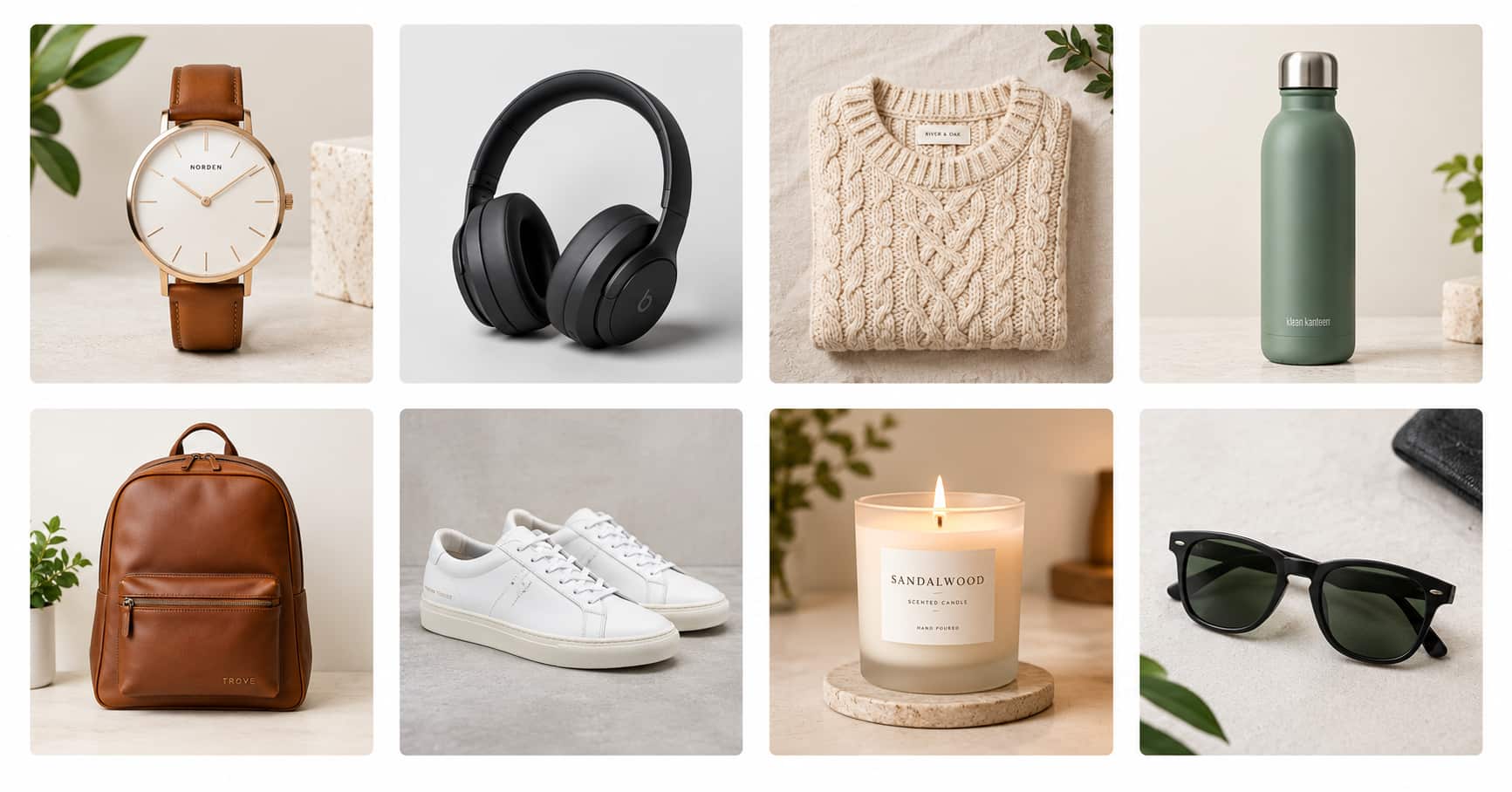
You've just finished a product shoot. Fifty new items, each with three or four photos. You upload them to Shopify — and the collection page looks like a patchwork quilt. Some images are portrait, some landscape, some square. The grid is ragged. The zoom feature is blurry on half of them.
The problem isn't your photography. It's inconsistent dimensions. Shopify themes are built around a 1:1 square aspect ratio for product images [citation:1]. When you upload mixed ratios, the theme either letterboxes them with white space, crops them unpredictably, or stretches them. None of those look professional.
The fix is batch resizing — getting every product image to the same dimensions before upload. Here's exactly what size to use, why it matters beyond appearance, and how to do it without uploading your unreleased products to a stranger's server.
The dimensions that actually work
Shopify's own documentation is clear: 2048 × 2048 pixels at a 1:1 square aspect ratio is the recommended size for product images [citation:1][citation:2]. This isn't arbitrary — it's the sweet spot between three competing requirements:
| Requirement | Why 2048px satisfies it |
|---|---|
| Retina display sharpness | High-DPI screens need 2x the display size. 2048px covers most product page displays. |
| Zoom functionality | Shopify themes enable image zoom. Anything under 800×800px looks blurry when zoomed [citation:1][citation:8]. |
| Page speed | Larger than 2048px adds no visible benefit but increases file size and load time [citation:1]. |
Shopify accepts uploads up to 5000 × 5000 pixels and 20 MB per file [citation:2][citation:5]. But the upload limit is not a performance target. A 15 MB image will destroy your Core Web Vitals scores [citation:1].
The file size target
| Spec | Recommendation |
|---|---|
| Dimensions | 2048 × 2048 px |
| Aspect ratio | 1:1 (square) |
| Format | WebP preferred, JPEG acceptable [citation:1] |
| Optimized file size | Under 500 KB (ideally 150–400 KB) [citation:1] |
| Maximum Shopify accepts | 20 MB [citation:2] |
A well-compressed WebP at 2048×2048 typically lands between 150–400 KB depending on image complexity [citation:1]. JPEG is acceptable but produces 25–35% larger files at equivalent quality.
Why batch resizing matters beyond appearance
Consistent thumbnails across your store
Every Shopify theme — from Dawn to custom builds — is designed around square product images [citation:1]. When you upload a mix of portrait and landscape photos, the theme applies its own crop or padding. You lose control over what the customer sees in the collection grid.
Batch resizing to 1:1 means you decide what's in the frame. The product is centered. The background is clean. The grid is uniform.
Page speed and Core Web Vitals
This is the part most sellers ignore until their store feels slow. An unoptimized 8 MB product JPEG will produce poor Core Web Vitals scores, which directly affects both SEO rankings and conversion rates [citation:1].
Shopify automatically resizes images for different display contexts, but it does not optimize file size on upload. If you upload a 4 MB image, Shopify serves a 4 MB image to some visitors. On mobile connections, that's a slow, frustrating experience.
Targeting under 500 KB per product image (after compression) keeps pages fast without visible quality loss [citation:1].
Zoom functionality
Most modern Shopify themes include image zoom on product pages. The zoom feature only works well when the source image has enough resolution. Shopify's guidance: images must be larger than 800 × 800 pixels for zoom to function properly [citation:8].
At 2048 × 2048, you have room to zoom into details — fabric texture, stitching, finish — without the image breaking down into visible pixels.
Common mistakes that hurt Shopify catalogues
- Uploading mixed aspect ratios. Portrait, landscape, and square images create a ragged grid. Shopify's theme settings will crop or letterbox unpredictably [citation:13].
- Resizing below 800×800. Zoom won't work, and Shopify may display a lower-quality version in search results [citation:1].
- Ignoring file size. A 2048×2048 image at 95% quality can easily exceed 1 MB. Compress after resizing.
- Using Shopify's built-in editor for bulk work. Shopify's admin image editor does not support batch resizing [citation:13]. You can resize one image at a time, but for a catalogue, that's not practical.
- Uploading PNGs for photos. PNG is for transparent backgrounds (logos, product cutouts). For standard product photography, WebP or JPEG is smaller and faster [citation:1].
How to batch resize product images locally
Step 1: Gather your photos in one folder
Before touching any tool, organize. Put all the product images you want to resize into a single folder. This makes batch selection easy and keeps your originals untouched.
Step 2: Open the image resizer
Go to the image resizer and drop in your entire batch. The tool processes everything locally in your browser — no upload, no account, no server round-trip.
Step 3: Set the dimensions
Enter 2048 for width and 2048 for height, and lock the aspect ratio to 1:1. If your source images aren't already square, the tool will crop or pad to fit. Check the preview to make sure your product stays centered.
Step 4: Choose the output format
WebP is the best choice for Shopify product images — it delivers 25–35% smaller files than JPEG at equivalent visual quality [citation:1]. If you're not sure your theme handles WebP, JPEG is a safe fallback.
Step 5: Compress to stay under 500 KB
After resizing, run the batch through the image compressor at around 75–80% quality. This typically brings a 2048×2048 WebP down to the 150–400 KB range [citation:1].
What about other marketplaces?
If you sell on multiple platforms, you'll need different dimensions for each:
| Platform | Recommended size | Max file size | Format |
|---|---|---|---|
| Shopify | 2048 × 2048 px | 20 MB | WebP, JPEG, PNG [citation:7] |
| Etsy | 2000 × 2000 px | 1 MB | JPEG |
| eBay | 1600 × 1600 px min | 7 MB | JPEG, PNG [citation:7] |
| Amazon | 2000 × 2000 px | 10 MB | JPEG |
A batch resizer that supports presets saves you from running the same process three or four times. Some browser extensions (like SellaFit) offer one-click presets for Amazon, Etsy, eBay, and Shopify — entirely local [citation:3].
The bottom line
Shopify product images should be 2048 × 2048 pixels, 1:1 aspect ratio, under 500 KB after compression. That single formula gives you sharp zoom, consistent grid layouts, and fast page loads.
For a catalogue of any size, batch resizing is the only practical approach. Shopify's built-in editor doesn't support it [citation:13]. The image resizer and image compressor handle batches locally in your browser — so you can prep an entire product launch without uploading a single unreleased design to anyone's server.