How to Crop a Photo for an Etsy Listing — The Ideal Aspect Ratio and Size
Etsy crops your listing photos differently in search, on mobile, and on the product page. Here's the exact aspect ratio and size that survives every crop — and how to crop it locally in your browser.
- etsy
- image cropping
- product photos
- ecommerce
- how-to
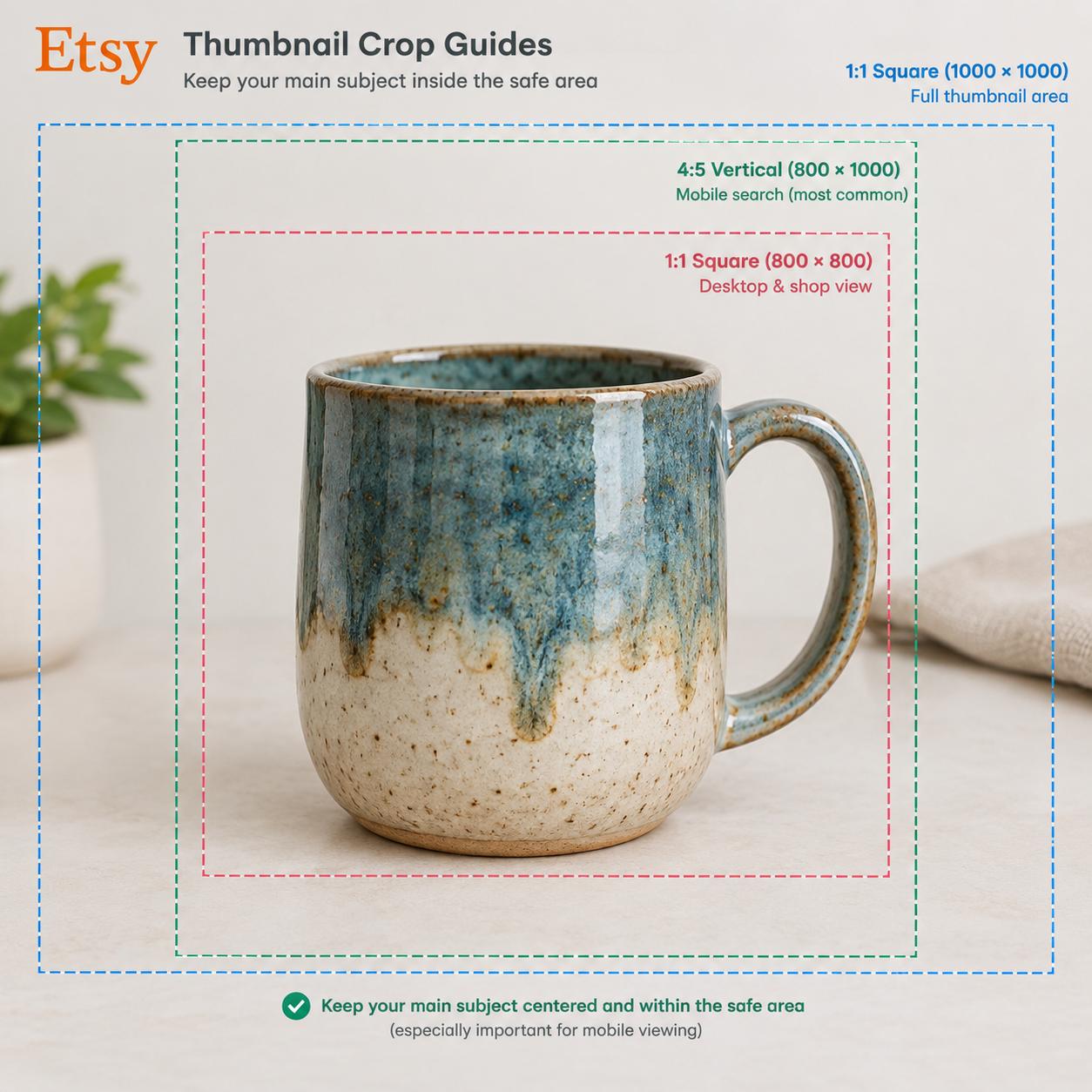
You photographed your product. It looks great. You upload it to Etsy — and the thumbnail crops off the top and bottom. The search result shows half your item. The mobile view looks completely different from the desktop view.
Etsy displays the same listing photo in at least three different crop ratios depending on where it appears. A photo that looks perfect in one context gets chopped in another. The fix is choosing the right aspect ratio and crop before you upload — so the product survives every view.
This guide covers the exact dimensions, the crop that works everywhere, and how to do it in your browser without uploading to a third-party editor.
Why Etsy crops your photo differently everywhere
Etsy doesn't use one fixed thumbnail size. The same image is displayed as:
- A square in some desktop search results
- A 4:3 landscape in the main search grid
- A 4:5 portrait in the mobile app
If your product fills the entire frame edge-to-edge, any of these crops can cut it off. That's why Etsy's own guidance says to leave space around your product and avoid placing anything important near the border.
The safest approach is a square (1:1) image with the product centered and breathing room on all sides. A square crop handles the aggressive thumbnail crops better than any other shape.
The ideal size and aspect ratio
Here's the specification that works across Etsy's displays:
| Spec | Recommendation | Why |
|---|---|---|
| Aspect ratio | 1:1 (square) | Safest for every Etsy crop context |
| Dimensions | 2000 × 2000 px | Etsy recommends at least 2000px on the shortest side to enable zoom |
| Minimum | 635 × 635 px | Below this, your listing may rank lower in search |
| File size | Under 1 MB | Larger files may fail to upload |
| Format | JPEG | Universal, small, and reliable |
Etsy officially recommends at least 2000 pixels on the width and height. A 2000×2000 square meets that recommendation and survives the thumbnail crops.
What about 4:3?
A 2700 × 2025 image (4:3 ratio) matches Etsy's search thumbnail exactly, so what you see in the grid is what you framed. The trade-off: portrait crops on mobile will trim the sides.
If you want the search grid to look exactly right, use 4:3. If you want the safest all-around option, use square. Most sellers choose square.
The crop that survives every view
The goal is simple: your product should be visible and centered in a square, a 4:3, and a 4:5 crop — all at the same time.
Here's how to achieve that:
1. Start with the widest version of your photo
Don't crop tightly in-camera. Leave extra room on all sides so you have flexibility later. If you already shot tight, use the crop image tool to add padding rather than cutting further.
2. Center the product
Place your item in the middle of the frame with roughly equal space on the left, right, top, and bottom. This is what makes a square, a landscape, and a portrait crop all work from the same source.
3. Apply a 1:1 crop
Open the crop image tool and set the ratio to 1:1. Position the crop box so your product sits in the center with visible margin around it. The margin is what protects you from Etsy's tighter thumbnail crops.
4. Resize to 2000 × 2000
After cropping, use the image resizer to set the exact output dimensions to 2000 × 2000 pixels. This meets Etsy's recommendation and keeps the file size manageable.
5. Compress to stay under 1 MB
A 2000×2000 JPEG at high quality can exceed 1 MB. Run it through the image compressor at around 80% quality to bring it under the limit without visible loss.
What each Etsy photo slot should show
Etsy allows up to 10 photos per listing, and each one has a job:
| Position | What to show | Crop note |
|---|---|---|
| 1 (main) | Product alone, centered, clean background | Square 1:1, full product visible |
| 2 | Product in use or on a model | Square, but subject can be off-center |
| 3 | Close-up of detail or texture | Square, tight crop is fine here |
| 4 | Scale reference (hand, ruler, common object) | Square, keep object centered |
| 5 | Packaging or what's included | Square |
| 6–10 | Variations, angles, lifestyle shots | Square consistently |
Keeping every image square makes your listing grid look clean and professional. Mixing ratios creates a ragged, inconsistent thumbnail wall.
Common mistakes that hurt Etsy listings
- Cropping too tight. No margin means Etsy's thumbnail crop cuts into your product.
- Uploading below 635px. Etsy may rank your listing lower, and zoom won't work.
- Using PNG for photos. PNG files are much larger and Etsy prefers JPEG for photography.
- Inconsistent aspect ratios. Your shop grid looks messy when thumbnails are different shapes.
- Ignoring the mobile crop. Over half of Etsy browsing happens on phones. Check how your listing looks in the Etsy app before publishing.
The bottom line
Crop to a square (1:1), resize to 2000 × 2000 pixels, compress to under 1 MB, and always leave margin around your product. That single formula survives Etsy's search grid, mobile app, and product page crops without cutting anything important.
The crop image tool, image resizer, and image compressor all run locally in your browser — so you can prep an entire product batch without uploading a single unreleased design to a server.